External Storage
External Storage is in Pre-Release. APIs and configuration may change before the stable release. Join the #large-payloads Slack channel to provide feedback or ask for help.
External Storage offloads payloads to an external store (such as Amazon S3) and passes a small reference token through the Event History instead. This is called the claim check pattern.
For SDK-specific setup instructions, see:
Why use External Storage
The Temporal Service enforces a maximum per-payload size. This limit is 2 MB on Temporal Cloud and is configurable on self-hosted deployments. Payloads that exceed this limit fail the operation. Without External Storage, you must restructure your code to work around the limit, for example by splitting data across multiple Workflows.
Even when individual payloads stay under the hard limit, payload data accumulates in Event History. Every Activity input and output is persisted, so Workflows that pass data through many Activities can see history size grow quickly. Large histories degrade Workflow Task latency and may force you to use Continue-as-New earlier than expected.
External Storage addresses several common scenarios:
- Data processing pipelines. Workflows that process documents, images, or other large blobs can exceed the per-payload limit.
- AI agent conversations. Long conversation histories grow with each turn, and the cumulative size can degrade Workflow performance.
- Spiky data sizes. Some Workflows handle data that is usually small but occasionally large. External Storage handles these spikes transparently, offloading only the payloads that exceed the size threshold.
- Migration to Temporal Cloud. Self-hosted deployments may have higher configured payload limits. External Storage lets you migrate to Cloud without restructuring Workflows that exceed the 2 MB limit.
- Data governance. While Temporal supports end-to-end client-side encryption, some organizations prefer to store payload data in infrastructure they control. Set the offload threshold to one to externalize all payloads regardless of size.
How External Storage fits in the data conversion pipeline
During Data Conversion, External Storage sits at the end of the pipeline, after both the Payload Converter and the Payload Codec:
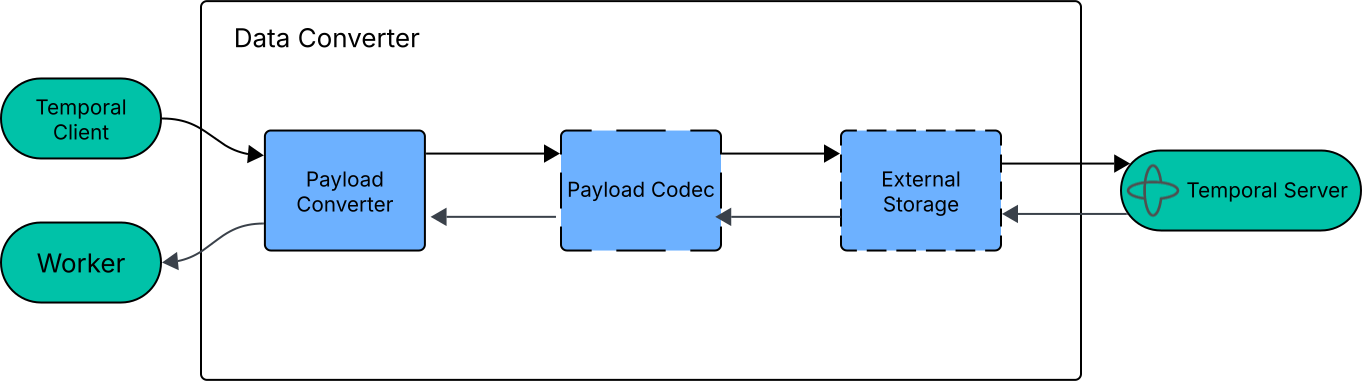
The Flow of Data through a Data Converter
When a Temporal Client sends a payload that exceeds the configured size threshold, the storage driver uploads the payload to your external store and replaces it with a lightweight reference. Payloads below the threshold stay inline in the Event History.
When the Temporal Service dispatches Tasks to the Worker, the process reverses. The Worker downloads the referenced payloads from external storage in parallel, then passes them back through the Payload Codec and Payload Converter to reconstruct the original data.
The SDK parallelizes uploads and downloads to minimize latency. When a single Workflow Task involves multiple payloads that exceed the threshold, the SDK uploads or downloads all of them concurrently rather than one at a time. This allows external storage operations to scale well even when a Task carries many large payloads.
If the external store is temporarily unreachable during an upload or download, the operation fails the Workflow Task. Temporal automatically retries failed Workflow Tasks, so the operation resumes when the store becomes available again.
Because External Storage runs after the Payload Codec, if you use an encryption codec, payloads are already encrypted before upload to your store.
Storage drivers
A storage driver connects External Storage to a backing store. Each driver provides two operations:
- Store. Upload payloads and return a claim, which is a set of key-value pairs the driver uses to locate the payload later.
- Retrieve. Download payloads using the claims that
storeproduced.
Temporal SDKs include built-in drivers for common storage systems like Amazon S3. You can configure multiple storage drivers and use a selector function to route payloads to different drivers based on size, type, or other criteria such as hot and cold storage tiers.
Custom storage drivers
If the built-in drivers don't support your storage backend, you can implement a custom driver by extending the
StorageDriver abstract class. For an example, see
Implement a custom storage driver
in the Python SDK guide.
Key configuration settings
Configure External Storage on the Data Converter. The key settings are:
- Size threshold. The driver offloads payloads larger than this value, which defaults to 256 KiB.
- Drivers. One or more storage driver implementations.
- Driver selector. When using multiple drivers, you must provide a function that chooses which driver handles each payload.
Lifecycle management for external storage
Temporal does not automatically delete payloads from your external store. Payloads can also be orphaned if a request fails after the upload completes. We recommend you configure a lifecycle policy that both ensures these payloads are eventually cleaned up and provides a grace period for debugging and recovery.
Your TTL must be long enough that payloads remain available for the entire lifetime of the Workflow plus its retention window:
TTL > Maximum Workflow Run Timeout + Namespace Retention Period
For example, if your longest-running Workflow has a Run Timeout of 14 days and your Namespace retention period is 30 days, configure your lifecycle rule to expire objects after at least 44 days.
If your Workflows run indefinitely (no Run Timeout), there is no finite TTL that guarantees safety. Set a generous TTL based on your operational needs. Use Continue-as-New for Workflows that need to run longer. The new run uploads fresh payloads, and the old run's payloads only need to survive through its retention period.